
While the Compatibility Support Module (CSM) enabled early UEFI motherboards to transition smoothly from 16-bit legacy BIOS, keeping this emulation layer active on modern hardware often causes severe boot instability. When CSM is enabled alongside a 64-bit operating system and a UEFI-native GPU, the firmware is forced to run dual-mode hardware initialization routines during the Power-On Self-Test (POST).
On modern hardware, keeping CSM enabled while running a 64-bit OS on a GUID Partition Table (GPT) drive introduces unnecessary POST overhead and frequent boot-priority conflicts.
Why CSM Causes Boot Latency and Failure
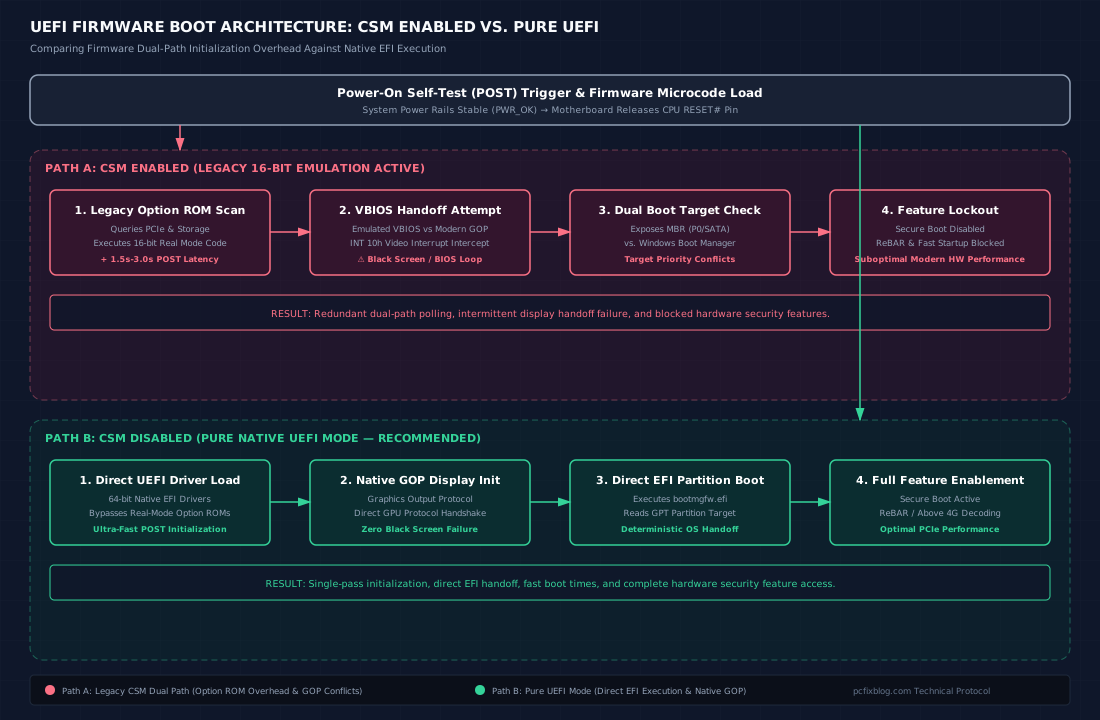
When CSM is active, the UEFI firmware runs a dual initialization path during POST:
- Legacy Option ROM Scanning: The motherboard queries attached PCIe devices, storage controllers, and GPUs for legacy 16-bit code before initializing native UEFI drivers. This adds noticeable delay to early hardware initialization.
- Firmware Handoff Conflicts: Modern graphics cards utilize UEFI Graphics Output Protocol (GOP). Emulated legacy video BIOS (VBIOS) can fail the initial display handoff, resulting in intermittent black screens or dropping the system directly back into the BIOS setup utility.
- Redundant Boot Targets: The firmware exposes both legacy drive handles (P0/SATA/NVMe) and native Windows Boot Manager instances, often causing the firmware to prioritize an unbootable legacy sector over the EFI system partition.
- Feature Lockout: Active CSM blocks core UEFI features at the firmware level, including Secure Boot, Resizable BAR (ReBAR), and native OS Fast Startup.
UEFI Firmware Boot Architecture Comparison
The following structural diagram illustrates the dual-path boot overhead caused by active CSM compared against direct, single-pass native UEFI boot:
Verification and Configuration Steps
Follow these steps to verify your storage layout and safely disable CSM in your system firmware:
1. Verify Partition Table
Confirm your OS drive is GPT before modifying firmware flags. In Windows, open PowerShell as Administrator and run Get-Disk. Check that the Partition Style column reads GPT. (If it reads MBR, use mbr2gpt /convert /allowFullOS to convert the disk without data loss).
Get-DiskIf your primary OS disk reports MBR under PartitionStyle, run the non-destructive disk conversion tool before turning off CSM:
mbr2gpt /validate /allowFullOS
mbr2gpt /convert /allowFullOS
2. Access Firmware Interface
Reboot the system and enter the UEFI interface (Del or F2 on most platforms during initial motherboard splash screen).
3. Disable Emulation
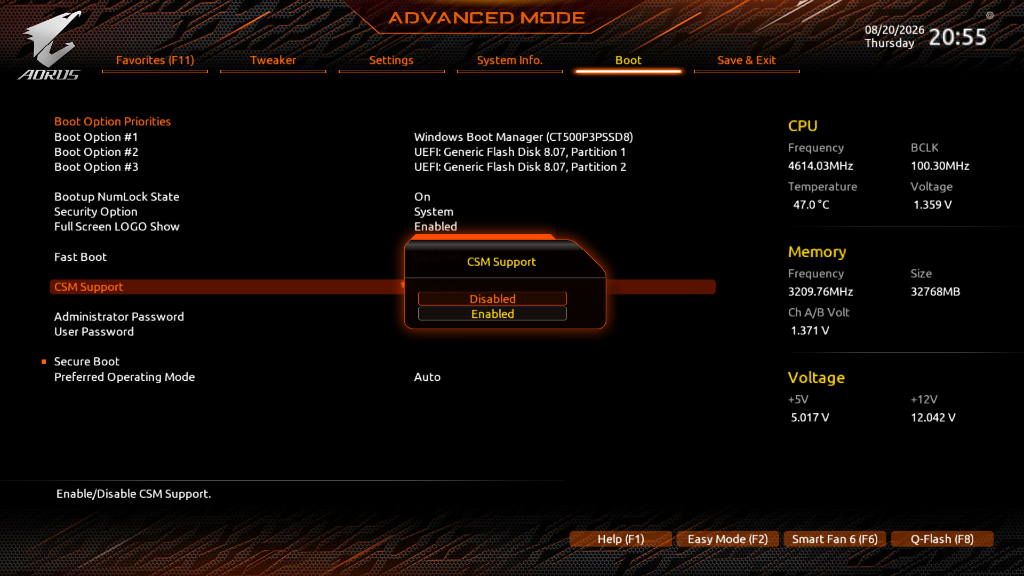
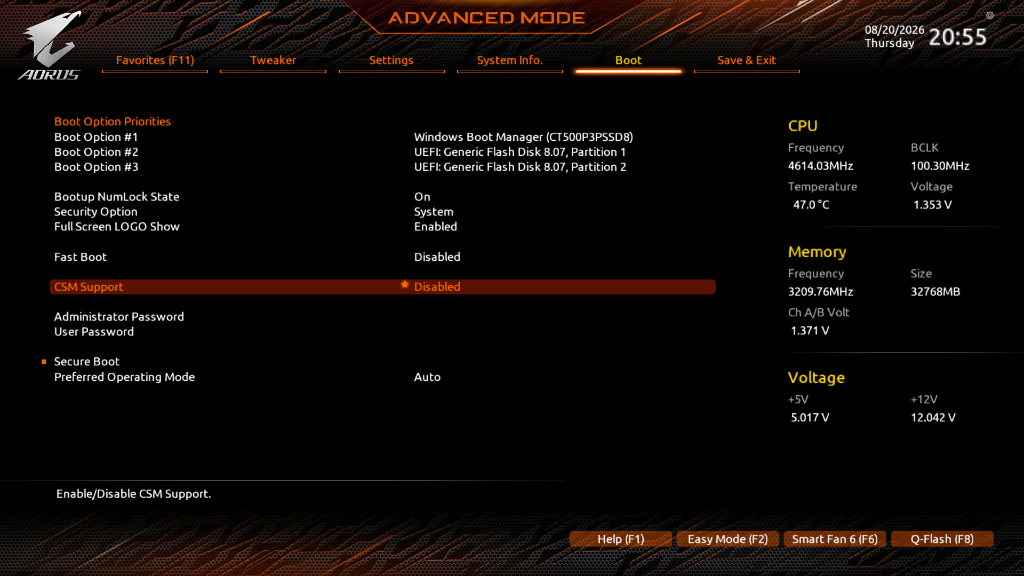
Under the Boot configuration menu, locate CSM Support (or Launch CSM) and toggle it to Disabled.
4. Set Boot Priority
Ensure Windows Boot Manager on your NVMe/SATA SSD is set as the primary boot target.
5. Save Changes
Commit the changes (F10) and restart.
Transitioning to pure UEFI mode strips out legacy initialization routines, ensuring direct handoff to the EFI bootloader and resolving firmware-level boot hangs.